How to show your three.js scene on Creative Code Art
three.js is a tool for 3D in the browser: shapes, lights, cameras and materials. This guide shows how to put a three.js scene on your artist page, where visitors can turn it with the mouse.
Above is Orbital Shards, a three.js work on the site.
1. Start a new work
- Sign in and open My account → My works.
- Press New work. The editor opens with a small example.
- In Tool, choose three.js.
2. Write or paste your scene
Write your code as a JavaScript module. Import three.js with import * as THREE from "three";. Extras such as OrbitControls come from three/addons/, for example three/addons/controls/OrbitControls.js. The scene fills the whole box, so use innerWidth and innerHeight for its size.
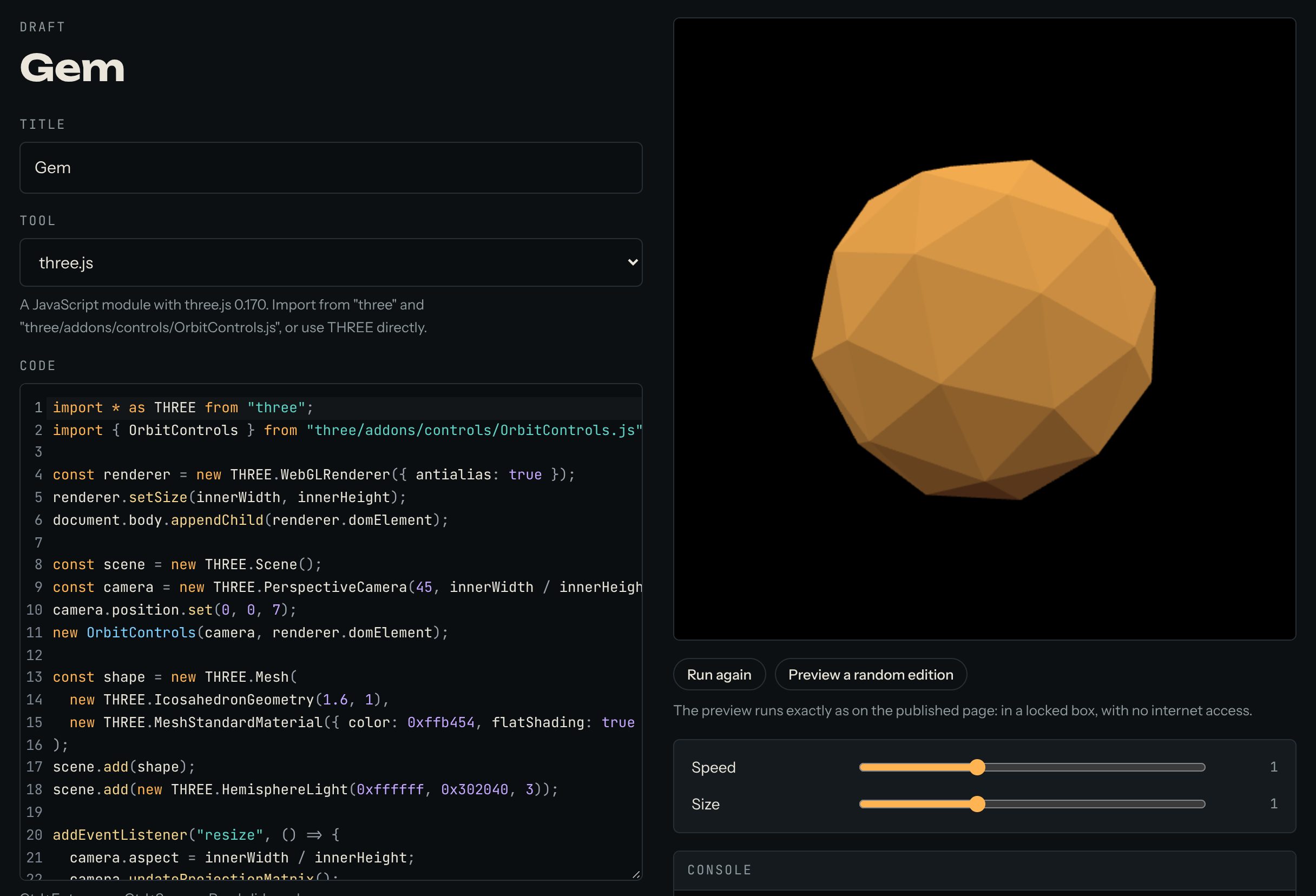
Here is a small scene you can try. Drag it with the mouse to turn it:
import * as THREE from "three";
import { OrbitControls } from "three/addons/controls/OrbitControls.js";

const renderer = new THREE.WebGLRenderer({ antialias: true });
renderer.setSize(innerWidth, innerHeight);
document.body.appendChild(renderer.domElement);

const scene = new THREE.Scene();
const camera = new THREE.PerspectiveCamera(45, innerWidth / innerHeight, 0.1, 100);
camera.position.set(0, 0, 7);
new OrbitControls(camera, renderer.domElement);

const shape = new THREE.Mesh(
  new THREE.IcosahedronGeometry(1.6, 1),
  new THREE.MeshStandardMaterial({ color: 0xffb454, flatShading: true }),
);
scene.add(shape);
scene.add(new THREE.HemisphereLight(0xffffff, 0x302040, 3));

addEventListener("resize", () => {
  camera.aspect = innerWidth / innerHeight;
  camera.updateProjectionMatrix();
  renderer.setSize(innerWidth, innerHeight);
});

renderer.setAnimationLoop((ms) => {
  const t = (ms / 1000) * params.speed;
  shape.rotation.set(t * 0.3, t * 0.5, 0);
  shape.scale.setScalar(params.size);
  renderer.render(scene, camera);
});
3. Add sliders
A slider lets visitors change a number in your work while it runs, for example the speed. In your code, read the number as params. and a name, for example params.speed.
In the example above, params.speed and params.size become two sliders. When your code reads a name that has no slider yet, the editor says so and shows a button to add it. Then set each slider's lowest value (min), highest value (max) and starting value (start). For this example, try speed from 0 to 3, starting at 1, and size from 0.5 to 2, starting at 1.
4. Find mistakes with the console
Under the preview there's a Console. Whatever your code prints with console.log() shows there, and so do errors, in red. It's the quickest way to see what a value is.
5. Publish
Give the work a title, write a few lines in About this work, and press Publish. The site takes a picture of the work for its cover. The work now appears on your artist page and in Works.
Good to know
- Works can't load files from the internet, so 3D models, textures and fonts can't be loaded. Build your shapes in code.
- Keep the
resizepart from the example, so the scene fits any screen, including phones.
Questions? Read "Which tools can I use?" on the Help page, or ask in the Chat.