How to put your Max (RNBO) patch on Creative Code Art
If you make sound in Max with RNBO, you can put a patch on your artist page. Visitors press play and hear it in their browser. Its parameters become sliders, and if the patch takes MIDI, visitors can play it with their computer keyboard.
1. Export your patch from Max
- In Max, open your
rnbo~patcher. - In the export sidebar, choose Web Export and export.
- You get a file that ends in
.export.json, usuallypatch.export.json.
The site works with exports from RNBO 1.2, 1.3 and 1.4.
2. Upload it
- Sign in and open My account → My works.
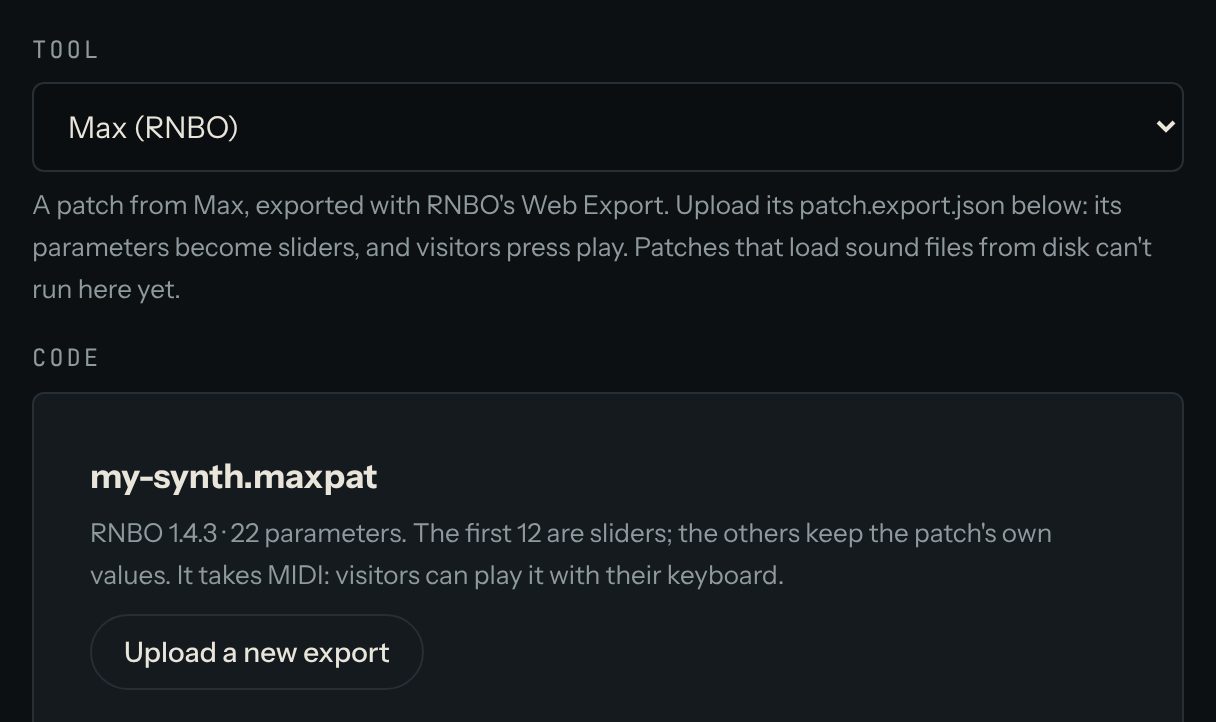
- Press New work, and in Tool, choose Max (RNBO).
- Press Upload patch.export.json and choose your file.
The editor shows the patch's name, its RNBO version and how many parameters it has. If the patch takes MIDI, it says so.
3. Set the sliders
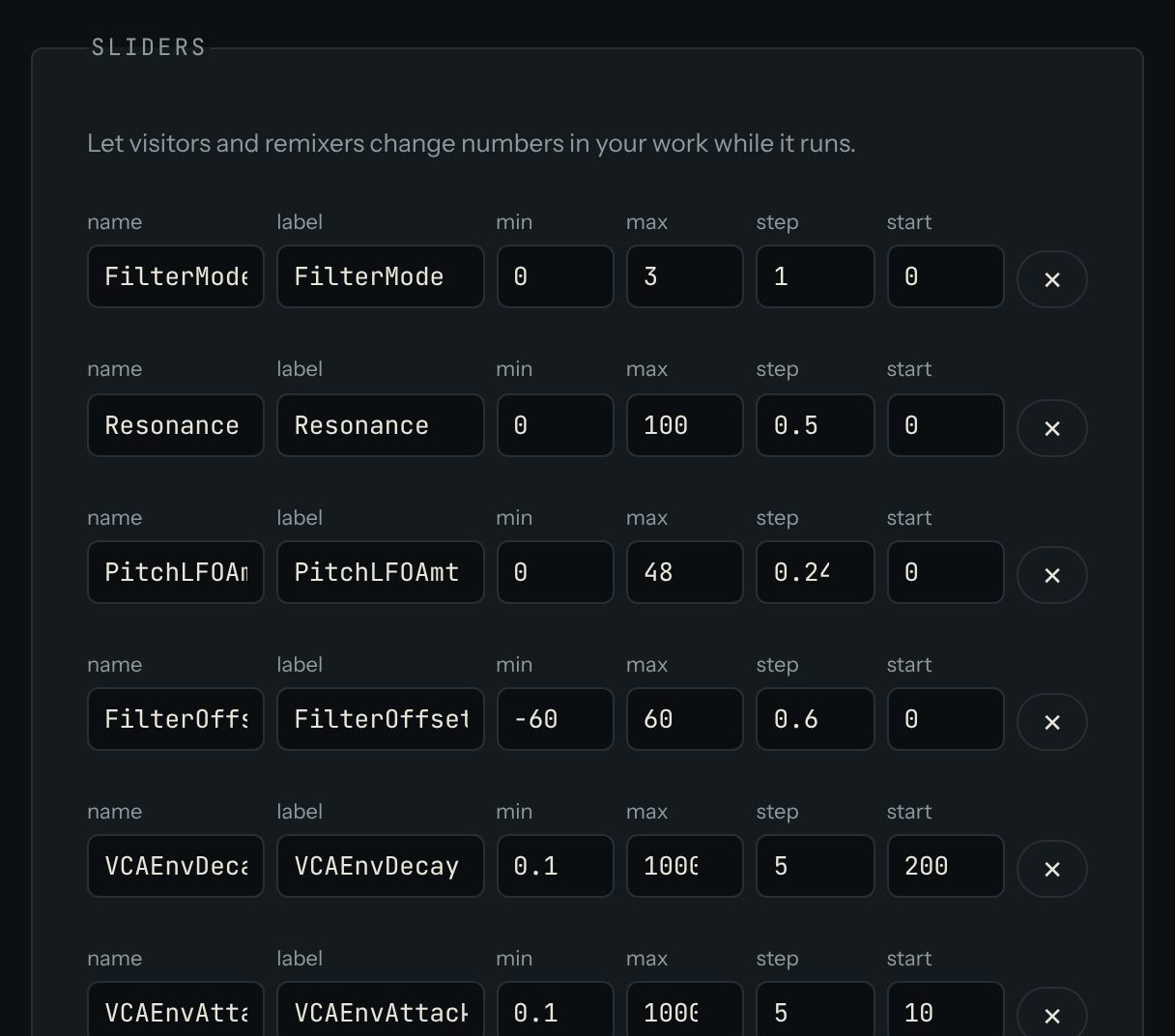
The patch's first 12 parameters become sliders. The others keep the values set in the patch.
Check the start values. Visitors first hear the sound with the sliders at their start values. Presets saved in the patch aren't loaded. If your patch starts silent, for example because its volume or oscillator levels start at 0, raise their start values in the Sliders box.
4. Listen
Press play in the preview. If the patch takes MIDI, play it with your keyboard: A S D F G H J K are the white keys, from middle C up, and W E T Y U the black keys.
Under the preview, the Console shows messages from the patch and any errors. A warning that the RNBO versions don't match exactly (for example 1.4.3 and 1.4.5) is normal and harmless.
5. Publish
Give the work a title, write a few lines in About this work, and press Publish. Music works can't play until someone presses play, so their cover is their sound flower: a picture drawn from the work's own code.
Good to know
- Keep the volume sensible. Some patches are very loud. Listen at a normal volume before you publish, and turn the output down in your patch if it's loud.
- Sound files can't be loaded. Works can't reach the internet, so a patch that plays samples from files may be partly silent. Make the sound in the patch itself.
- Up to 3 MB. Most exports are much smaller.
Questions? Read "Which tools can I use?" on the Help page, or ask in the Chat.