How to put your p5.js sketch on Creative Code Art
p5.js is the most popular tool for drawing with code. If you've made sketches on the p5.js website, you can put them on your artist page as they are. They run live in the visitor's browser, and you can add sliders so visitors can change them.
Above is Petal Storm, a p5.js work on the site.
1. Start a new work
- Sign in and open My account → My works.
- Press New work. The editor opens with a small example.
- In Tool, choose p5.js.
2. Write or paste your sketch
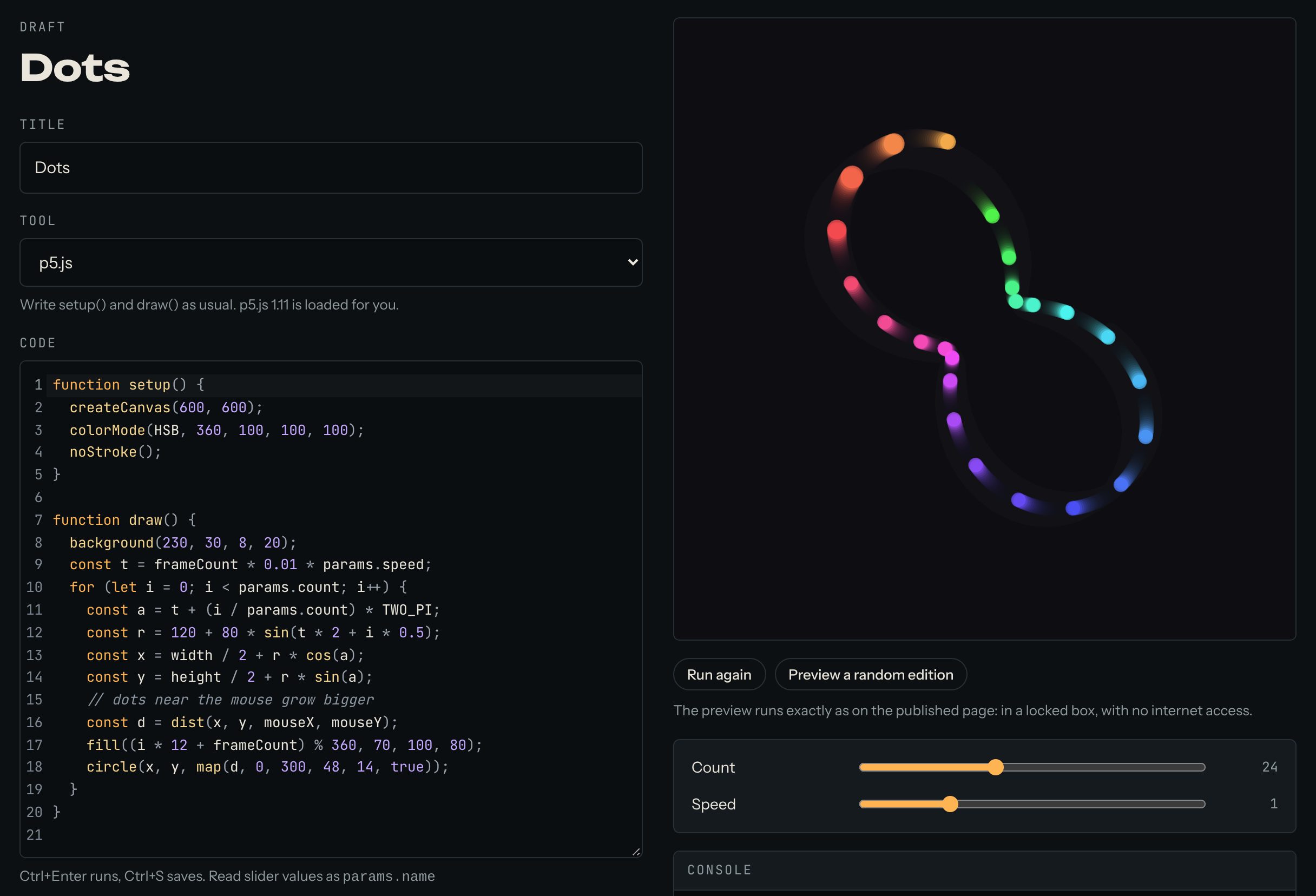
Write setup() and draw() as usual. p5.js is already loaded, so you don't need an HTML file or a <script> tag. The preview runs your sketch a moment after you stop typing. Press Run again to start it from the beginning.
Here is a small sketch you can try. The dots grow bigger near the mouse:
function setup() {
  createCanvas(600, 600);
  colorMode(HSB, 360, 100, 100, 100);
  noStroke();
}

function draw() {
  background(230, 30, 8, 20);
  const t = frameCount * 0.01 * params.speed;
  for (let i = 0; i < params.count; i++) {
    const a = t + (i / params.count) * TWO_PI;
    const r = 120 + 80 * sin(t * 2 + i * 0.5);
    const x = width / 2 + r * cos(a);
    const y = height / 2 + r * sin(a);
    // dots near the mouse grow bigger
    const d = dist(x, y, mouseX, mouseY);
    fill((i * 12 + frameCount) % 360, 70, 100, 80);
    circle(x, y, map(d, 0, 300, 48, 14, true));
  }
}
3. Add sliders
A slider lets visitors change a number in your work while it runs, for example the speed. In your code, read the number as params. and a name, for example params.speed.
In the example above, params.count and params.speed become two sliders. When your code reads a name that has no slider yet, the editor says so and shows a button to add it. Then set each slider's lowest value (min), highest value (max) and starting value (start). For this example, try count from 1 to 60, starting at 24, and speed from 0 to 4, starting at 1.
4. Find mistakes with the console
Under the preview there's a Console. Whatever your code prints with console.log() shows there, and so do errors, in red. It's the quickest way to see what a value is.
5. Publish
Give the work a title, write a few lines in About this work, and press Publish. The site takes a picture of the work for its cover. The work now appears on your artist page and in Works.
Good to know
mouseX,mouseY,mousePressed()andkeyPressed()work as usual, and so does touch on a phone.- Works can't load files from the internet, so
loadImage(),loadFont()andloadSound()don't work. Draw everything in code. random()andnoise()work. If you offer free editions of a work, each edition gets its own random numbers.
Questions? Read "Which tools can I use?" on the Help page, or ask in the Chat.