Make your work react to the mouse and touch
A work that answers the mouse or a finger feels alive. Visitors stop scrolling and start playing. This guide shows how to make your work react to the mouse, to clicks and to touch, in each tool.
Move your mouse over Magnet Field: the needles turn towards it. Click to leave a magnet behind.
1. p5.js and Processing
mouseX and mouseY say where the mouse is, and on a phone they follow the finger. mousePressed() runs on a click or a tap.
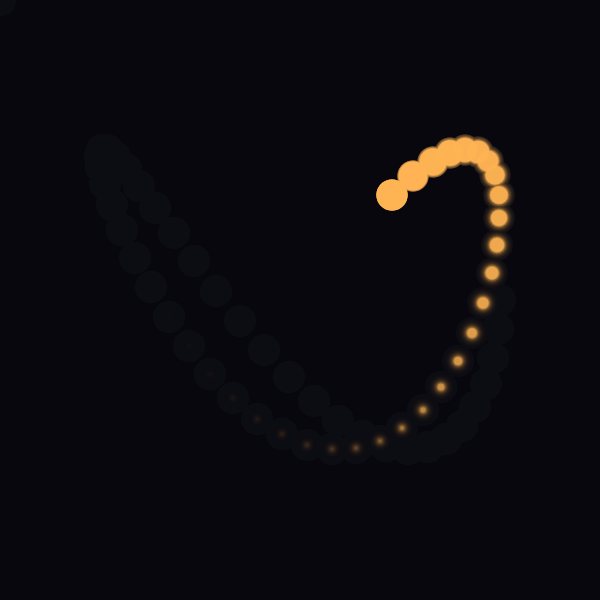
Here is a small sketch you can try in p5.js. A light follows the mouse, and a click flashes the background:
// A light that follows the mouse, or a finger on a phone.
let trail = [];

function setup() {
  createCanvas(600, 600);
  noStroke();
}

function draw() {
  background(12, 14, 18, 40);
  trail.push({ x: mouseX, y: mouseY });
  if (trail.length > params.length) trail.shift();
  trail.forEach((p, i) => {
    fill(255, 180, 84, (i / trail.length) * 255);
    circle(p.x, p.y, i * 0.8);
  });
}

// A click or a tap flashes the background.
function mousePressed() {
  background(95, 212, 196);
}
It reads one slider, params.length: try it from 5 to 80.
In Processing, the code looks different (void, float, no let or =>), and circle() doesn't exist, so use ellipse():
// The same light in Processing.
void setup() {
  size(600, 600);
  noStroke();
}

void draw() {
  fill(12, 14, 18, 40);
  rect(0, 0, width, height);
  fill(255, 180, 84);
  ellipse(mouseX, mouseY, 40, 40);
}

// A click or a tap flashes the background.
void mousePressed() {
  background(95, 212, 196);
}
2. Shaders
In a GLSL shader, declare uniform vec2 u_mouse;. It holds the mouse position in pixels. In Shadertoy style, use iMouse. In TouchDesigner mode, uMouse goes from 0 to 1.
3. three.js and Canvas JS
Use ordinary JavaScript events. Save the pointer position when it moves, then use it when you draw:
// Canvas JS: a dot follows the mouse or a finger.
canvas.width = 600;
canvas.height = 600;
const pointer = { x: 300, y: 300 };

// Save the position each time the pointer moves.
canvas.addEventListener("pointermove", (e) => {
  const box = canvas.getBoundingClientRect();
  pointer.x = (e.clientX - box.left) * (canvas.width / box.width);
  pointer.y = (e.clientY - box.top) * (canvas.height / box.height);
});

// Use it in every frame.
function draw() {
  ctx.fillStyle = "rgba(12, 14, 18, 0.15)";
  ctx.fillRect(0, 0, 600, 600);
  ctx.fillStyle = "rgb(255, 180, 84)";
  ctx.beginPath();
  ctx.arc(pointer.x, pointer.y, 24, 0, Math.PI * 2);
  ctx.fill();
  requestAnimationFrame(draw);
}
draw();
Pointer events work for both the mouse and touch. In three.js, save the position the same way and use it in your animation loop, for example to move a light. Also in three.js, OrbitControls lets visitors turn the scene by dragging.
4. Make it work on phones
- Test with a finger. Open your work's page on your phone and try it.
- Don't depend on hovering. A phone has no mouse that hovers, so make sure the work also looks good when nobody touches it.
- Big targets. Small things are hard to tap. Let the whole work react, not one tiny spot.
- Start somewhere nice. Before anyone moves, the mouse position is 0, the top-left corner. Check that the first picture still looks good.
Questions? Ask in the Chat.