Draw with plain JavaScript on Creative Code Art
Canvas JS is plain JavaScript with nothing extra to learn. You get a canvas to draw on and its 2D drawing tools, and that's all. It's a good choice if you already know JavaScript, or want to learn how drawing with code works underneath.
Above is Wave Choir, a Canvas JS work on the site.
1. Start a new work
- Sign in and open My account → My works.
- Press New work. The editor opens with a small example.
- In Tool, choose Canvas JS.
2. Write your code
Two things are ready for you: canvas, the picture, and ctx, its 2D drawing tools. Set the size, then draw. To animate, draw a frame and ask for the next one with requestAnimationFrame.
Here is a small example you can try:
canvas.width = 600;
canvas.height = 600;
let t = 0;

function frame() {
  ctx.fillStyle = "rgba(10, 12, 16, 0.15)";
  ctx.fillRect(0, 0, 600, 600);
  for (let i = 0; i < params.lines; i++) {
    const y = (i + 0.5) * (600 / params.lines);
    ctx.strokeStyle = "hsl(" + ((i * 20 + t * 40) % 360) + ", 80%, 65%)";
    ctx.beginPath();
    for (let x = 0; x <= 600; x += 10) {
      const wave = Math.sin(x * 0.02 + t + i * 0.4) * params.height;
      if (x === 0) ctx.moveTo(x, y + wave);
      else ctx.lineTo(x, y + wave);
    }
    ctx.stroke();
  }
  t += 0.02;
  requestAnimationFrame(frame);
}
frame();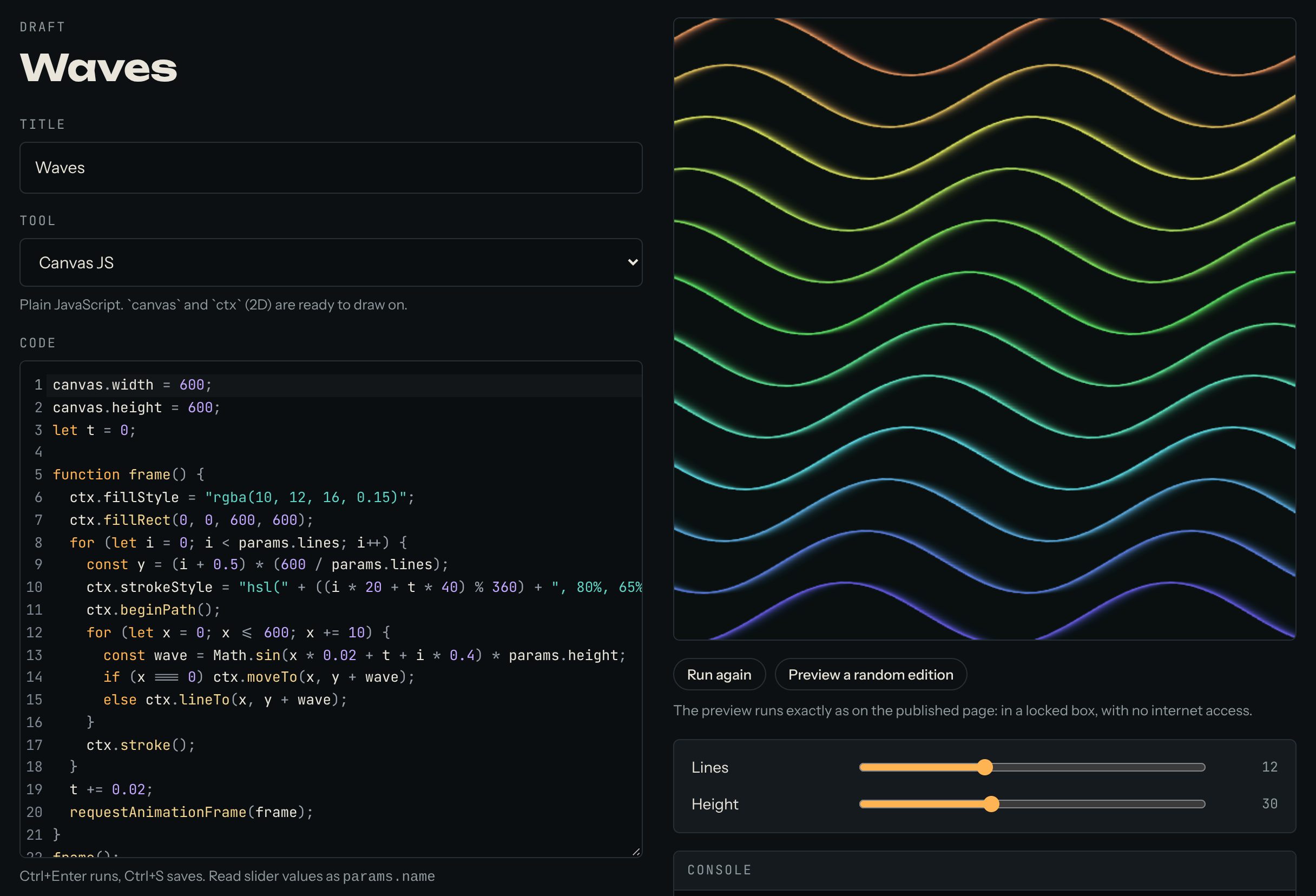
3. Add sliders
A slider lets visitors change a number in your work while it runs, for example the speed. In your code, read the number as params. and a name, for example params.lines.
In the example above, params.lines and params.height become two sliders. When your code reads a name that has no slider yet, the editor says so and shows a button to add it. Then set each slider's lowest value (min), highest value (max) and starting value (start). For this example, try lines from 2 to 30, starting at 10 — give it step 1, because it counts lines — and height from 0 to 80, starting at 40.
4. Find mistakes with the console
Under the preview there's a Console. Whatever your code prints with console.log() shows there, and so do errors, in red. It's the quickest way to see what a value is.
5. Publish
Give the work a title, write a few lines in About this work, and press Publish. The site takes a picture of the work for its cover. The work now appears on your artist page and in Works.
Good to know
- The mouse and touch work with ordinary JavaScript events, for example
canvas.addEventListener("pointermove", ...). - Works can't load files from the internet, so draw everything in code.
Questions? Read "Which tools can I use?" on the Help page, or ask in the Chat.